Why ChatGPT's Markdown Turns Into Asterisks in Word
You copied a clean, nicely formatted answer out of ChatGPT, pasted it into Word, and got a wall of asterisks, pound signs and backticks. Nothing is broken and you did nothing wrong — Word simply has no Markdown parser. Here is what actually happens at the moment you press Ctrl+V, and four ways to get real headings, bold text, tables and code into a document.

The short answer
ChatGPT, Claude and most other AI assistants write their answers in Markdown — a plain-text convention where a pair of asterisks means bold, a leading # means a heading, and backticks mean code. The chat window renders that Markdown for you, so on screen you see bold text and real headings. What lands on your clipboard, though, is usually the underlying plain text, asterisks and all.
Microsoft Word has no Markdown parser. It does not scan pasted text looking for formatting conventions, so it does the only honest thing available to it: it shows you every character it received, literally. The asterisks are not an error message and they are not a corrupted paste — they are the formatting instructions themselves, displayed as text because nothing on the receiving end knew to interpret them.
That means the fix is never "remove the asterisks by hand." The fix is to put something between the AI and Word that understands Markdown and emits real Word formatting. The fastest route is to paste your Markdown into the Markdown to Word converter and download a .docx with genuine heading styles, bold runs, bullet lists and tables already applied.
What you actually pasted
It helps to see the two halves side by side. On the left is the raw Markdown that AI assistants emit and that your clipboard carries; on the right is what those same characters are supposed to become. Word shows you the left side; you expected the right side.
### Quarterly summary

**Revenue** grew 12% while *costs* stayed flat.

- Enterprise: up 18%
- Self-serve: up 4%

Run `npm run report` to regenerate.The twist: Word does understand asterisks — but only while you type
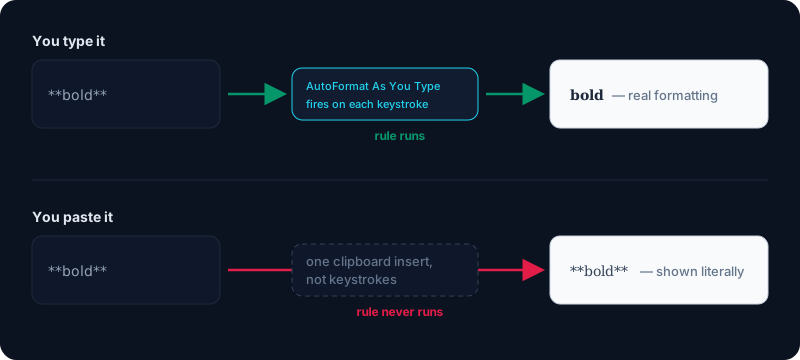
Here is the part almost every other explanation of this problem leaves out, and it is the reason the behaviour feels so arbitrary. Word ships with an AutoCorrect option literally built for asterisk-based emphasis. In the AutoCorrect dialog, under the AutoFormat As You Type tab, there is a checkbox called "*Bold* and _italic_ with real formatting." With it enabled, typing *bold* directly into a Word document converts it to real bold and deletes the asterisks for you.
Microsoft's own developer documentation for the underlying setting describes it as: "True if manual emphasis characters are automatically replaced with character formatting as you type." The decisive phrase is "as you type." The feature is implemented as a typing-time autocorrect rule — it fires on keystrokes, watching for the closing asterisk as you enter it. A paste is not a sequence of keystrokes. It is a single clipboard insertion, so the rule never runs.
So Word is not ignorant of the convention; it is just that the one place it supports it is the one place you are not using. This is why the problem resists every intuitive workaround: toggling that checkbox, retyping a word, or pasting into a fresh document all leave the asterisks in a pasted block exactly where they were. It also explains the confusing half-formatted results people sometimes report, where a stray asterisk typed by hand afterwards suddenly does bold something while the pasted ones stubbornly do not.
Decoding the symbols you are seeing
Asterisks get the complaints because bold is the most common formatting in an AI answer, but they are rarely alone. Each stray character maps to a specific Markdown element, and knowing which is which tells you how much structure you are about to lose.
Double asterisks around a phrase meant bold, and a single asterisk or underscore meant italic. A # at the start of a line was a heading, and the number of them set the level — one for a title, two for a section, three for a subsection. A leading dash or asterisk plus a space was a bullet; a number followed by a period was a numbered list.
Single backticks marked inline code, while three backticks on their own line opened and closed a code block — and inside those fences the language name you see dangling, like `python` or `sql`, was a syntax-highlighting hint, not content. Pipes and dashes forming rows were a table. A leading > was a blockquote. A line of three dashes was a horizontal divider, and if you see one sitting directly under a line of text it may even turn that line into an unwanted heading.
Two of these matter far more than the rest when you move to Word. Tables and fenced code blocks are not simple character swaps — a table has to become a real Word table object with rows and cells, and a code block should become a monospaced, non-autocorrected block. Any fix that only strips asterisks will flatten both into unusable runs of text, which is the single most common disappointment with manual cleanup.
Four ways to paste it cleanly
1. Convert the Markdown to a .docx. This is the only approach that reliably preserves the full structure — headings become Word heading styles that feed the navigation pane and table of contents, tables become real tables, and code blocks stay monospaced. Paste your text into the Markdown to Word converter and download the document. It runs in your browser, so the content never leaves your machine. If you want a fixed-layout file for sharing or printing instead of an editable one, the Markdown to PDF route takes the same input.
2. Render it, then copy the rendered result. If you only need the text inside an existing document and want to keep Word's own styles, render the Markdown first and copy from the rendered output rather than from the chat window. Pasting that gives you formatted rich text, because the clipboard now carries HTML formatting instead of Markdown conventions. You can render any Markdown on the home page viewer and copy straight from the rendered pane.
3. Ask the assistant not to use Markdown. For short, prose-only answers this is genuinely the quickest fix: ask for the reply "in plain text with no Markdown formatting." You will get clean sentences with no symbols to clean up. The trade-off is that you also give up all structure, so it is a poor choice for anything with tables, code or more than a couple of headings.
4. Paste into Google Docs first. Since October 2026, Google Docs opens and edits .md files natively, and it has had an opt-in "paste from Markdown" setting since July 2024 (Tools, then Preferences). Pasting there and then moving the content into Word can work — but be aware the native handling is uneven on exactly the elements that matter most, with tables, nested lists and fenced code blocks the usual casualties. Treat it as a convenience path for simple documents, not a reliable one for structured ones.
Why hand-cleaning is a trap
The instinct is to select the text and use find-and-replace to delete every asterisk. It works for a three-paragraph answer and quietly fails for anything longer, for three reasons worth knowing before you spend twenty minutes on it.
First, deleting the markers destroys the information rather than applying it: once the asterisks around a phrase are gone, nothing is bold — you have simply produced unformatted text and still have to bold every phrase by hand. Second, headings do not survive. Removing a # leaves a line of body text that merely looks like a heading; it is not a real Word heading style, so it will not appear in the navigation pane, will not generate a table of contents entry, and will not carry over if the document is later converted again. Third, find-and-replace cannot tell a formatting marker from real content, so it will happily strip the asterisks in a footnote reference, a multiplication expression, or a code sample where they are meant to be there.
Converting instead of cleaning sidesteps all three, because a converter reads the markers, applies the formatting they describe, and then removes them — in that order.
Where else this happens
The same mismatch appears anywhere a Markdown-emitting assistant meets an application that does not parse Markdown. You will see raw asterisks in Word, Outlook, PowerPoint, most email clients, plain-text editors, and many CMS and form fields. You will not see them in GitHub, GitLab, Reddit, Discord, Slack (which uses its own close variant), Obsidian, Notion, or any code editor previewing a .md file — those all parse Markdown themselves.
Google Docs now sits in between, with native .md support as of October 2026 but inconsistent results on tables, nested lists and code. If your destination is on the first list, converting before you paste is the dependable move; the direction you need also works in reverse with the Word to Markdown converter when a colleague sends you a .docx you want back as clean Markdown.
If you are new to the conventions themselves and want to know what each symbol does, the Markdown syntax guide covers every element with live examples you can copy. If the file an assistant handed you is itself a .md and you are not sure what to do with it, here is what that extension actually means.
Worth separating two problems that feel identical: this page is about text that was never parsed because the destination has no Markdown support. If instead you are somewhere that *should* render Markdown and it still comes out raw or half-formatted, that is a different diagnosis — work through the usual causes in order.
Frequently asked questions
Why does ChatGPT use asterisks for bold instead of real formatting?
Because its output is text, not a formatted document. Markdown is the standard way to express formatting in plain text, so it works equally well in a chat window, a terminal, an API response or a code editor. The chat interface renders that Markdown visually, which is why the asterisks are invisible until you paste the underlying text somewhere that does not parse it.
Does turning on AutoFormat in Word fix pasted asterisks?
No. The relevant setting, "*Bold* and _italic_ with real formatting," is on the AutoFormat As You Type tab, and Microsoft documents it as replacing emphasis characters as you type. It is a keystroke-time rule, so it never fires on a paste. Enabling it will convert asterisks you type by hand afterwards, but it leaves an already-pasted block untouched.
Will converting preserve my tables and code blocks?
A proper Markdown-to-Word conversion does. Pipe tables become real Word tables with rows and cells, and fenced code blocks stay as monospaced blocks rather than being reflowed as prose. This is the main advantage over deleting the symbols by hand, which flattens both into plain paragraphs.
Why do my headings look right but not behave like headings?
Because removing the # characters leaves text that is visually similar but structurally plain. Real Word headings use heading styles, which is what populates the navigation pane and any generated table of contents. Converting applies those styles; stripping the symbols does not.
Can I avoid the problem by asking for plain text?
Yes, for simple answers. Asking the assistant to reply in plain text with no Markdown gives you clean prose with nothing to clean up. You lose all structure in exchange, so it is a good fit for a paragraph or two and a poor one for anything containing tables, code or several levels of heading.