Markdown to PDF
Paste Markdown, preview the formatted document, and export a PDF — tables, code, LaTeX math and Mermaid diagrams all rendered, all in your browser. Download in one click, or print to a vector, searchable PDF.
A formatted preview of your document will appear here.
Two ways to export, both 100% in your browser — your file is never uploaded. Download PDF saves a pixel-perfect file in one click; Print / Save as PDF gives a vector PDF with selectable, searchable text.
Free & client-side. Your files are never uploaded.
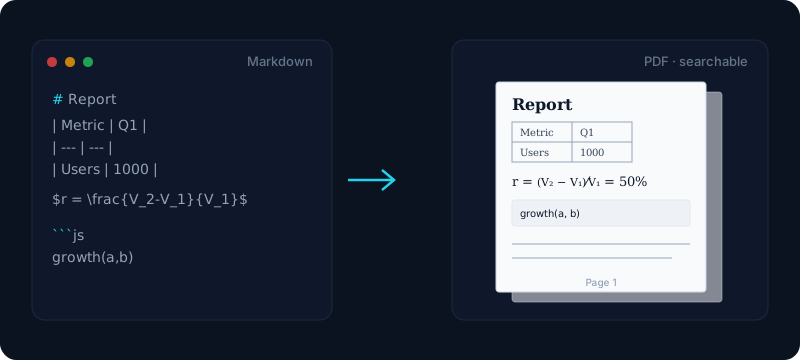
Convert Markdown to PDF right in your browser — free, private, and with two ways to export so you get exactly the file you need. Paste your Markdown, watch the formatted, paginated document render live, and when it looks right, save it. Download PDF builds a pixel-perfect file in one click; Print / Save as PDF hands it to your browser’s print engine for a vector PDF whose text stays selectable, copyable and searchable. Either way, tables, code blocks, LaTeX math and Mermaid diagrams are rendered, not lost.
Every rich element carries across. GitHub-Flavored tables keep their borders, fenced code blocks keep their syntax highlighting, LaTeX math is typeset cleanly with KaTeX, Mermaid diagrams render as crisp charts, and GitHub callouts and task lists all appear the way you wrote them. Whether you are exporting a technical spec, an academic paper full of equations, a polished README, or a résumé, the md to pdf output holds its formatting instead of collapsing into plain text.
And because nothing is uploaded, the whole thing stays private: your Markdown is rendered and saved on your own machine, so contracts, résumés and internal reports never touch a server. Pick the export that fits — one-click Download PDF when you just want the file fast, or Print / Save as PDF when you need selectable, searchable text — and you have a repeatable way to turn any .md into a shareable document without installing a toolchain.
How it works
- 1
Paste your Markdown, or open a .md file, into the box.
- 2
Check the live preview — tables, code, LaTeX math and Mermaid diagrams all render.
- 3
Click Download PDF for a one-click file, or Print / Save as PDF for a vector, searchable one.
Why use this converter
- Two exports: one-click download, or a vector PDF with selectable text
- Renders tables, code, LaTeX math & Mermaid diagrams
- Live preview before you export, with A4 or Letter paper
- 100% client-side — no upload, no signup
Use cases
Export technical docs & READMEs to PDF
Turn a spec or README full of tables, code blocks and diagrams into a clean, shareable PDF that renders the same for everyone.
Turn academic Markdown with LaTeX into a PDF
Convert notes, homework or a paper with inline and block equations into a tidy PDF where the math is typeset and crisp.
Save an AI-generated draft as a polished PDF
Paste the Markdown ChatGPT, Claude or Notion hands you and export a formatted PDF ready to file, print or send.
Frequently asked questions
How do I convert Markdown to PDF for free?
Paste your Markdown (or open a .md file), check the live preview, then click Download PDF to save the file in one click — or use Print / Save as PDF for a searchable version. It is completely free, with no signup and no watermark.
What is the difference between “Download PDF” and “Print / Save as PDF”?
Download PDF saves the file in a single click and reproduces the preview exactly, pixel for pixel — great when you just want the document out fast. Print / Save as PDF opens your browser’s print dialog (choose “Save as PDF” as the destination) and produces a vector PDF whose text stays selectable, copyable and searchable with Ctrl+F. Pick whichever fits: quick file, or searchable text.
Does it support LaTeX math and Mermaid diagrams?
Yes. Inline and block LaTeX are typeset with KaTeX, and Mermaid code fences render as diagrams — both appear cleanly in the preview and in either PDF export, which makes this handy for technical and academic documents.
Can I get a PDF with selectable, searchable text?
Yes — use Print / Save as PDF. Because that route uses your browser’s print engine, the text is real text: you can select and copy it, and Ctrl+F searches the whole document, staying sharp when you zoom. The one-click Download PDF reproduces the layout as a crisp image instead, so choose Print / Save as PDF when you need the text to be searchable.
Are my files uploaded anywhere?
No. The Markdown is rendered and turned into a PDF entirely in your browser — nothing is sent to a server. That makes it safe for résumés, contracts and internal reports.
Can I choose A4 or Letter paper size?
Yes — switch between A4 and Letter before you export. Margins and header/footer options are controlled by your browser’s print dialog under “More settings”.
How do I remove the page header or footer (URL, date)?
Those are added by the browser when you use Print / Save as PDF — open “More settings” in the print dialog and turn off “Headers and footers” for a clean page. The one-click Download PDF has no browser header or footer at all.
Does it support GitHub-Flavored Markdown (tables, task lists)?
Yes. GFM tables, task lists, fenced code blocks and GitHub callouts are all supported and render into the PDF exactly as they appear in the preview.