Rich Text to Markdown
Copy formatted text from Word, Notion, Google Docs or a web page, paste it in, and watch it turn into clean Markdown — headings, tables, lists and links all carried over, live in your browser.
Your Markdown will appear here as you paste HTML or rich text.
Free & client-side. Your files are never uploaded.
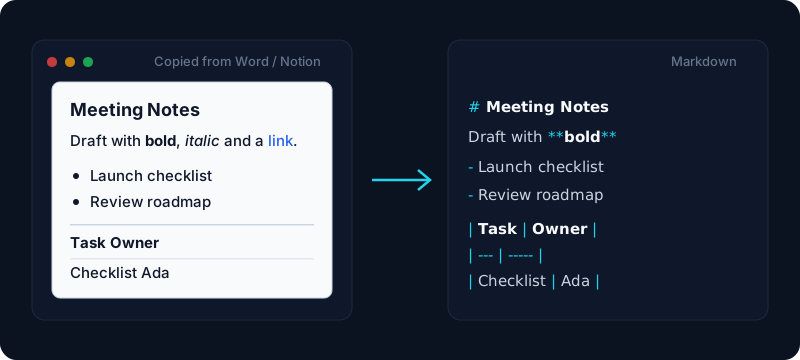
Rich text is the formatted content you copy out of everyday apps — a heading here, a bold word there, a bulleted list, a table. When you copy it from Microsoft Word, Notion, Google Docs, Outlook, Confluence, or a web page, your clipboard quietly carries the underlying markup alongside the plain text. This tool reads that markup the instant you paste, so a formatted document lands as tidy Markdown instead of a flattened, style-stripped wall of text. No exporting, no saving a file, no fiddling with tags — just select, copy, paste.
That paste-and-go flow is what makes it different from typing Markdown by hand. A Notion page with nested bullets, a Google Doc with a heading and a table, an email with bold and italic — each comes across with its structure intact: real heading syntax, pipe tables, ordered and unordered lists, links, blockquotes, and inline emphasis. It is the fastest way to move a polished doc into a GitHub README, a static-site page, a wiki, or an AI prompt without hand-cleaning every line.
Everything happens in your browser — the pasted content is never uploaded to a server, so meeting notes, unpublished drafts, and internal docs stay on your device. If you already have raw HTML markup rather than copied rich text, our HTML to Markdown tool does the same job from a markup source; for the reverse trip, Markdown to HTML turns Markdown back into semantic HTML.
How it works
- 1
Copy formatted text from Word, Notion, Google Docs, an email, or a web page.
- 2
Paste it into the box — the clipboard’s formatting is read automatically and the Markdown updates live.
- 3
Copy the Markdown to your clipboard, or download converted.md.
Why use this converter
- Reads the formatting from your clipboard — no export or file needed
- Works with Word, Notion, Google Docs, Outlook, Confluence & web pages
- Keeps headings, tables, lists, links, blockquotes & inline emphasis
- Outputs GitHub-Flavored Markdown you can paste anywhere
- Live preview with rendered and Markdown-source views
- Runs entirely in your browser — nothing is uploaded
Use cases
Move a Google Docs or Word draft into Markdown
Copy a formatted draft — headings, tables, and lists — out of Google Docs or Word, paste it here, and get Markdown you can drop into a README, a docs site, or a static-site post without reformatting by hand.
Turn Notion or Confluence pages into portable Markdown
Select a Notion page or a Confluence section, copy it, and paste to get clean Markdown — handy for migrating notes into a Git-based wiki or exporting knowledge-base content.
Paste an email or web snippet as clean Markdown
Copy a formatted email, a chat message, or a highlighted passage from a web page and convert it to plain, structured Markdown before dropping it into a prompt, a ticket, or a note.
Frequently asked questions
How do I convert rich text to Markdown?
Copy formatted content from Word, Notion, Google Docs, an email, or a web page, then paste it into the box. The tool reads the formatting your clipboard carries and shows clean Markdown live on the right. Switch between the rendered preview and the Markdown source, then click Copy Markdown or download converted.md.
What counts as rich text?
Rich text is any formatted content — headings, bold, italic, links, bulleted or numbered lists, and tables — as opposed to plain text. When you copy it from an app like Word, Notion, or Google Docs, the clipboard holds the underlying markup, and this tool turns that into Markdown.
Does it work with Notion, Word and Google Docs?
Yes. Copy a page or selection from Notion, Microsoft Word, Google Docs, Outlook, Confluence, or a rendered web page and paste it here — the formatting comes across as Markdown, so a doc with headings, a table, and a list becomes structured Markdown instead of flat text.
Do I need to export a file first?
No. You do not export or download anything from the source app — just select, copy, and paste. The formatting travels with your clipboard, and the converter reads it directly, which is faster than exporting to HTML and uploading a file.
Is my content uploaded anywhere?
No. The entire conversion runs in your browser and nothing is sent to a server, so meeting notes, private drafts, and internal documents never leave your device.
What is the difference from the HTML to Markdown tool?
Same engine, different starting point. This page is tuned for pasting formatted text you copied from an app like Word or Notion; the HTML to Markdown tool is aimed at raw HTML markup you already have as source. Both produce clean GitHub-Flavored Markdown.